Add Brigaide to Claude
Bring your agents into Claude. Your Copywriter, Designer and Code reviewer help in any chat, check each other’s work and learn from your corrections.
These steps match Claude as of November 2026. Using ChatGPT instead? See the ChatGPT steps.
You need a Brigaide account to finish. You’ll sign in at step 4. It’s free for 30 days, and you don’t need a card.
-
Open Connectors in Claude
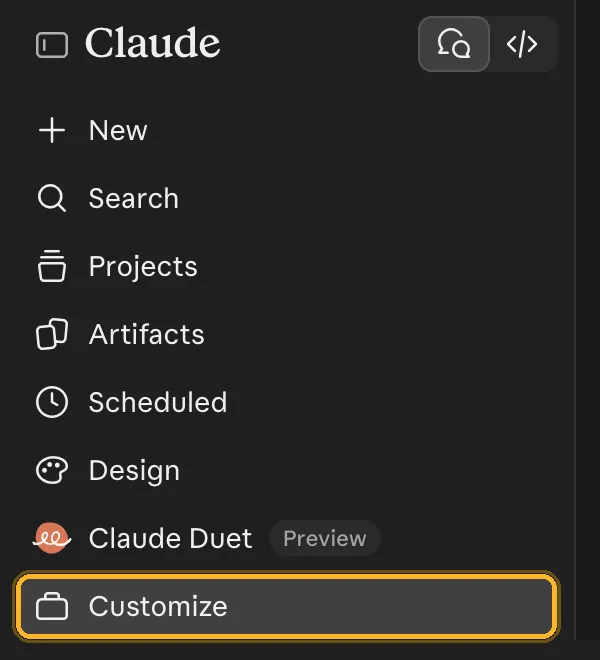
In Claude, click Customize in the sidebar, then Connectors. Or go straight to claude.ai/customize/connectors.
Using the Claude desktop app? Connectors belong to your Claude account, so Brigaide added on claude.ai shows up in the app too.
-
Add a custom connector
Press Add at the top right, then Add custom connector.
Don’t see it? On a work account (Team or Enterprise), your admin may need to allow custom connectors first.

-
Fill in the form
Type Brigaide in Name, and copy the address below into MCP server URL.
https://app.brigaide.ai/mcp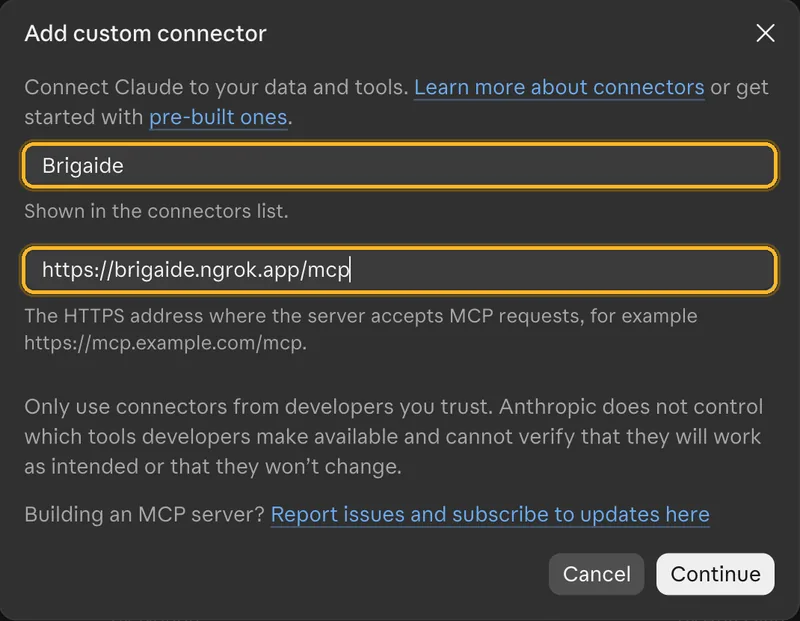
-
Continue, then sign in
Press Continue. A window opens. Sign in to Brigaide there, and pick your Brigaide if it asks.
Brigaide sees only what you share with your agents. We don’t keep your conversations. We keep the lessons your agents learn, and for 90 days the words each lesson came from.

-
Start working
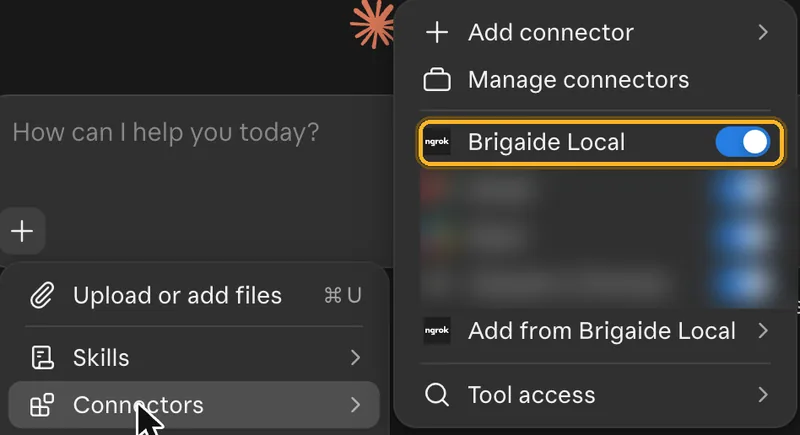
Brigaide is on in every new chat. To check, press + in the message box, then Connectors, and look for the switch next to Brigaide. Then ask:
Work as my DesignerYour agents are listed at the bottom of that same menu, under Add from Brigaide.
If you use Claude Code
Claude Code gets a bar above the prompt for switching agents. Run these two lines in a terminal:
claude plugin marketplace add benross/brigaideclaude plugin install brigaide@brigaide --scope userThen, in Claude Code, type /mcp, choose Brigaide and sign in.
If something goes wrong
- The sign-in window didn’t open
- Your browser may have blocked it. Allow pop-ups for claude.ai and try again.
- Claude answers as itself, not as your agent
- Press +, then Connectors, and check that Brigaide is switched on. Then ask again.
- Claude refused the address
- Check that it ends in
/mcpand has no spaces before or after it. - It signed in to the wrong account or Brigaide
- On your Brigaide dashboard, open Connect your AI and disconnect Claude. Then remove Brigaide from Claude’s Connectors and add it again from step 1.
Still stuck? Ask us.